Close FreeCAD. Download the source ZIP and extract it. Place the workbench files in a folder named 1stNesting, with InitGui.py directly inside it.
Keep a copy of existing job files and results when updating.
Avoid an extra nested archive folder.
02
Put it in FreeCAD’s Mod directory
On Windows, use C:\Users\YOUR_USER_NAME\AppData\Roaming\FreeCAD\Mod. On Linux and macOS, use the Mod folder inside FreeCAD’s user data directory. Run App.getUserAppDataDir() in FreeCAD’s Python console to find that directory.
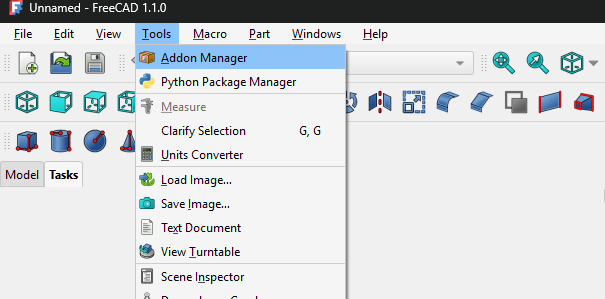
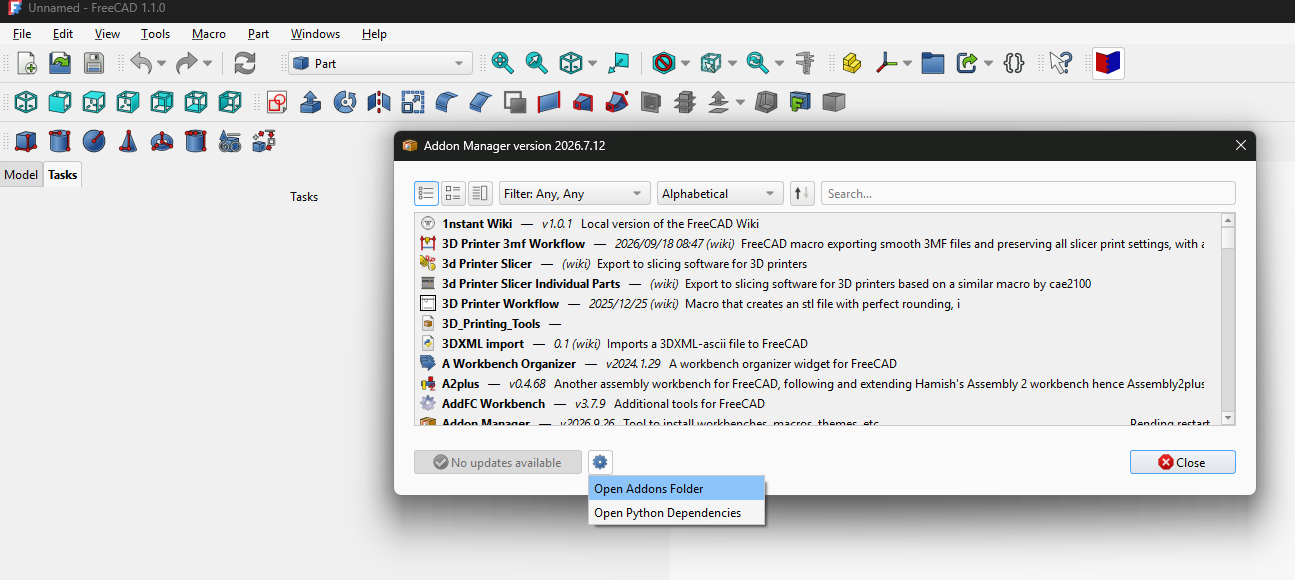
Alternatively, open FreeCAD and choose Tools → Addon Manager. In the Addon Manager window, click the gear icon and choose Open Addons Folder. This opens FreeCAD’s add-ons directory. Close FreeCAD, then place the 1stNesting folder there, with InitGui.py directly inside it.
The workbench folder must be writable for jobs, logs and results.
The repository is called 1st-Nesting; use 1stNesting as the installation folder name.
1. In FreeCAD, choose Tools → Addon Manager.2. Click the gear icon → Open Addons Folder.
03
Restart FreeCAD and select 1st Nesting
Restart FreeCAD and select 1st Nesting in the workbench selector. Accept the first-use offer to download the CLI-Nesting engine for your system. Then open Nesting Tool from the workbench toolbar or menu.
No separate Python installation is needed for normal workbench use.
Engine releases support Windows x64, Linux x64/ARM64 and macOS Universal 2; full workbench testing has been performed on Windows.
WHAT YOU CAN DO
Everything your layout needs.
▧
Your real geometry
Add FreeCAD solids, including STEP models opened in FreeCAD, or import DXF and SVG outlines. Curved and concave perimeters are preserved rather than replaced with bounding boxes.
↔
Sheets and reusable offcuts
Use rectangular sheets or irregular DXF stock. Set material quantities, edge margins, fractional part spacing and permitted rotations.
◇
Texture that stays together
Arrange transparent part outlines in the Match texture editor. Snapping, collision checks and minimum spacing help you preserve the relationship between neighbouring parts.
↗
A result you can inspect
Run a fast first solution or a continuous search. Review the reconstructed geometry in FreeCAD and export a coloured SVG report with part legends and sheet utilisation.
THE WORKFLOW, STEP BY STEP
Your first nesting project.
Follow the vertical blocks from adding parts to exporting the result. These screenshots show the real FreeCAD workbench; some earlier captures use its previous name.
18 steps
01
Add FreeCAD and STEP parts
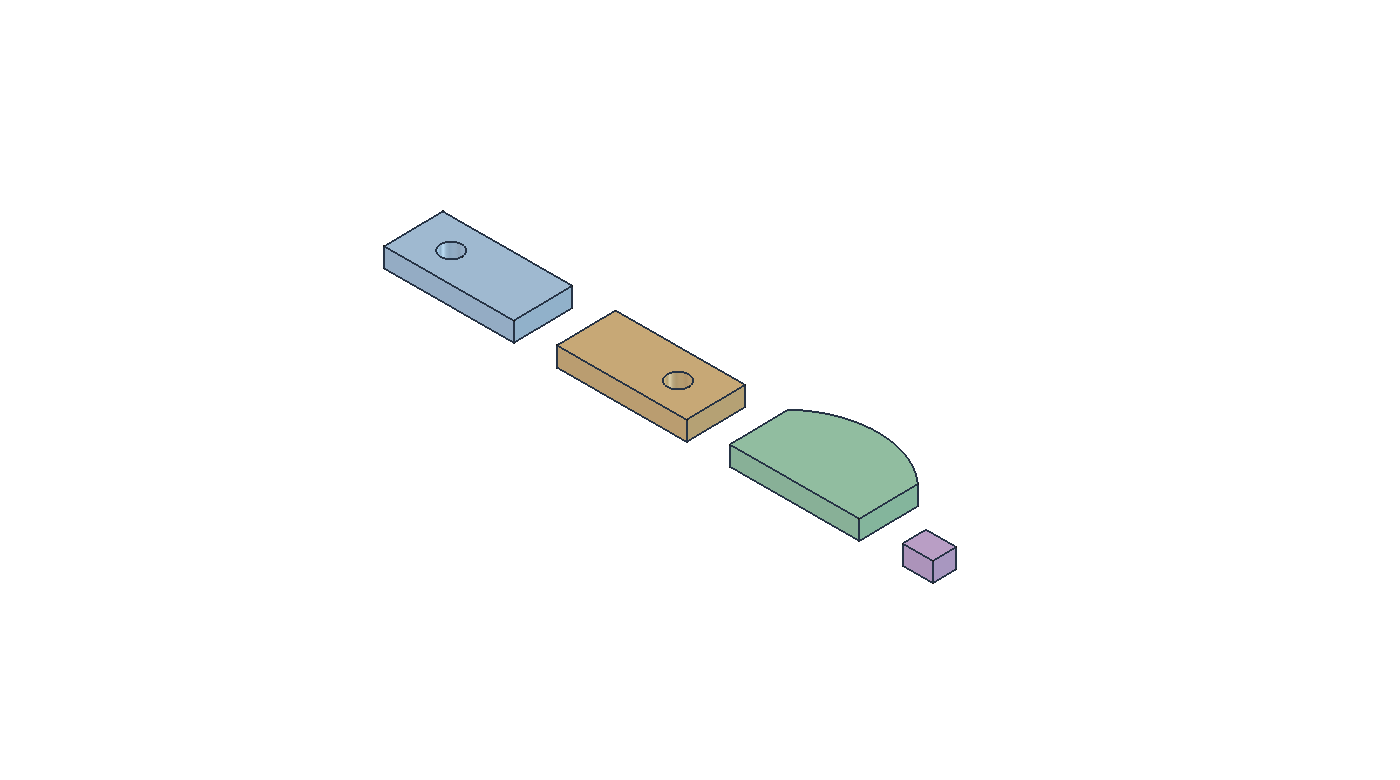
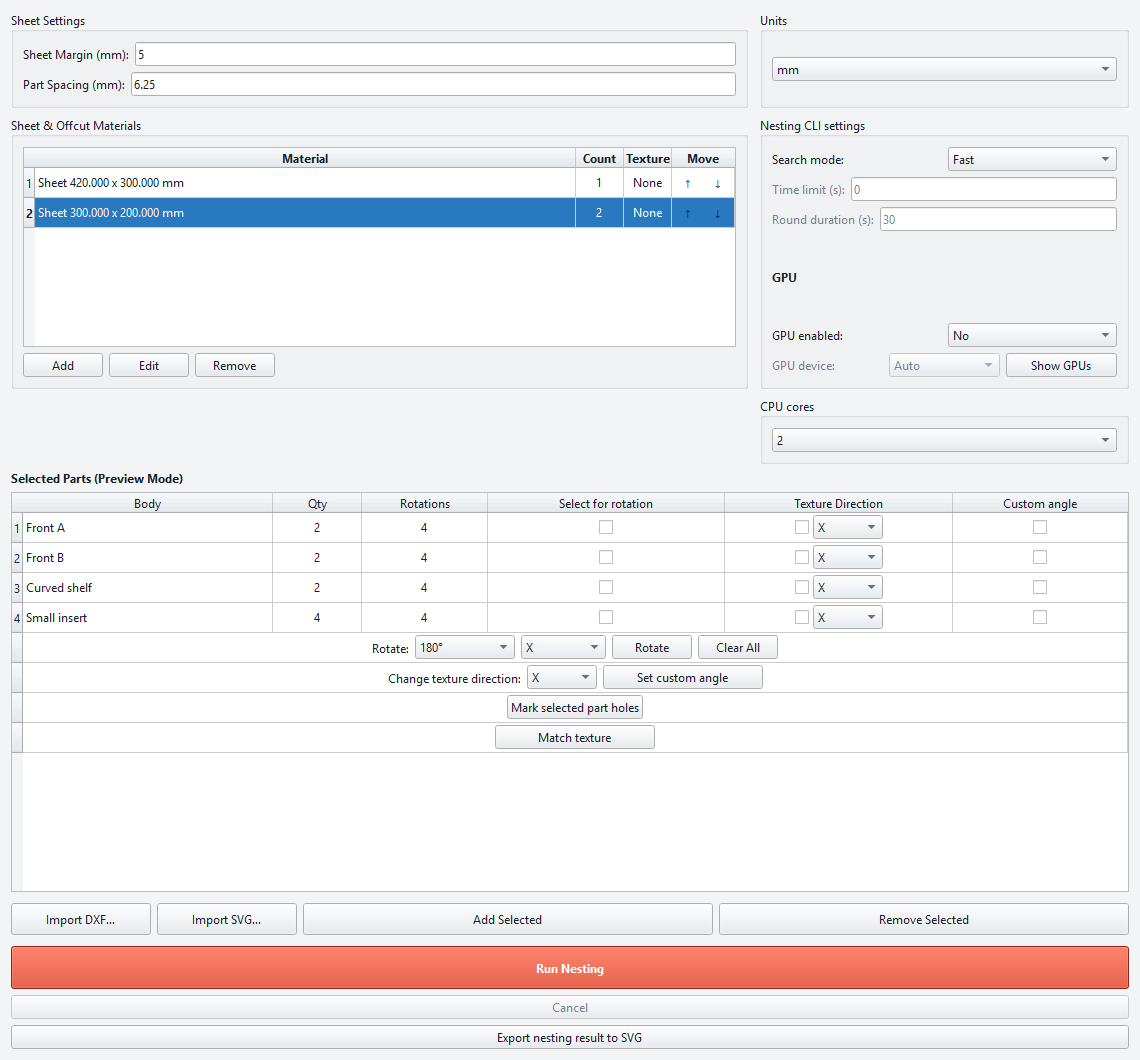
Open your model or STEP file in FreeCAD. Select the bodies or solids in the model tree or 3D view; use Ctrl to select several objects. Open Nesting Tool and click Add Selected. Selected source objects may be added automatically when the tool opens.
Working copies appear in Nesting_Preview. Inspect the face facing upward, especially when drilling or grooves are present on only one side.
Source geometry stays separate from the nesting preview.
Check that every required part appears in the table.
01 / Add FreeCAD and STEP parts View image ⤢
02
Import DXF and SVG outlines
Use Import DXF… or Import SVG… to load part profiles. DXF import can accept several files in one operation. Inspect the preview after import and check inner contours and scale.
For a DXF that represents stock rather than a part, use the material Add button later in the workflow.
Use closed, correctly scaled outlines.
Verify imported quantities before running a job.
02 / Import DXF and SVG outlines View image ⤢
03
Review the parts table
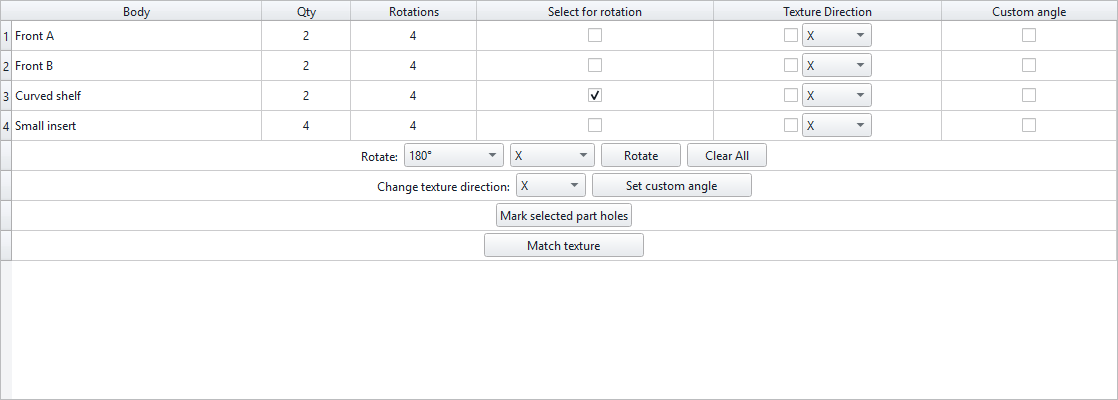
The row number identifies each part or saved texture group. Click a row to select its preview geometry. Double-click Qty to enter a positive whole number, and double-click Rotations to edit permitted angles.
Use Remove Selected to remove unwanted rows. Row selection is different from the Select for rotation checkbox, which chooses targets for the preparation Rotate command.
Set the number of copies for each part.
Inspect the preview when changing orientation.
03 / Review the parts table View image ⤢
04
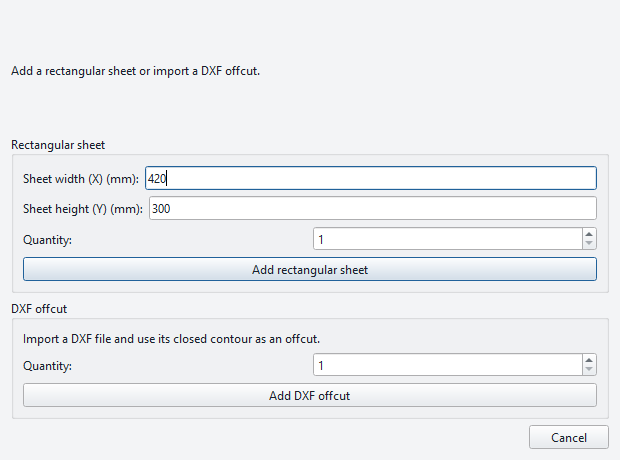
Add rectangular sheets
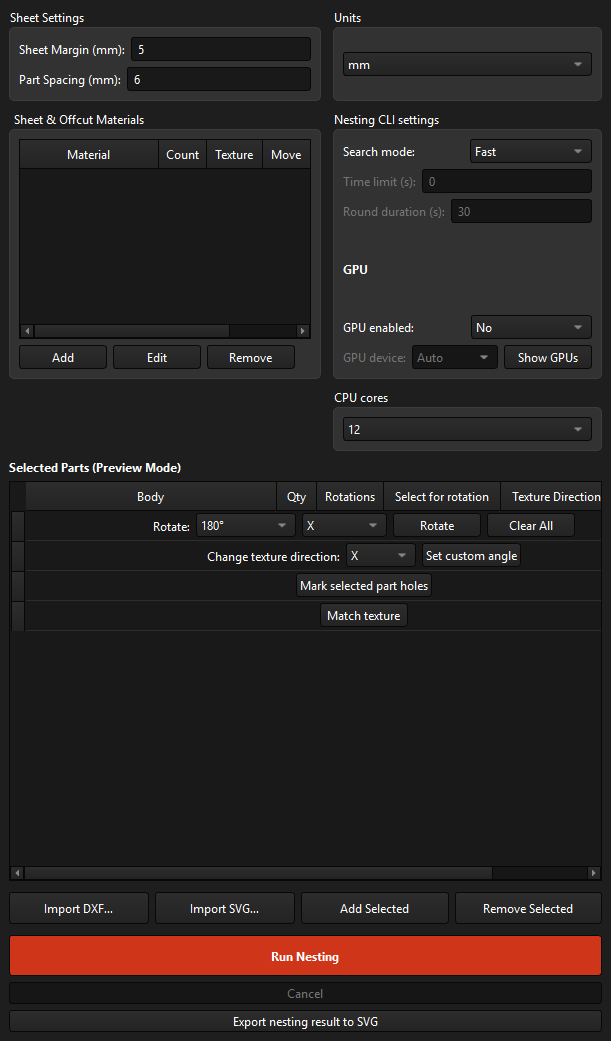
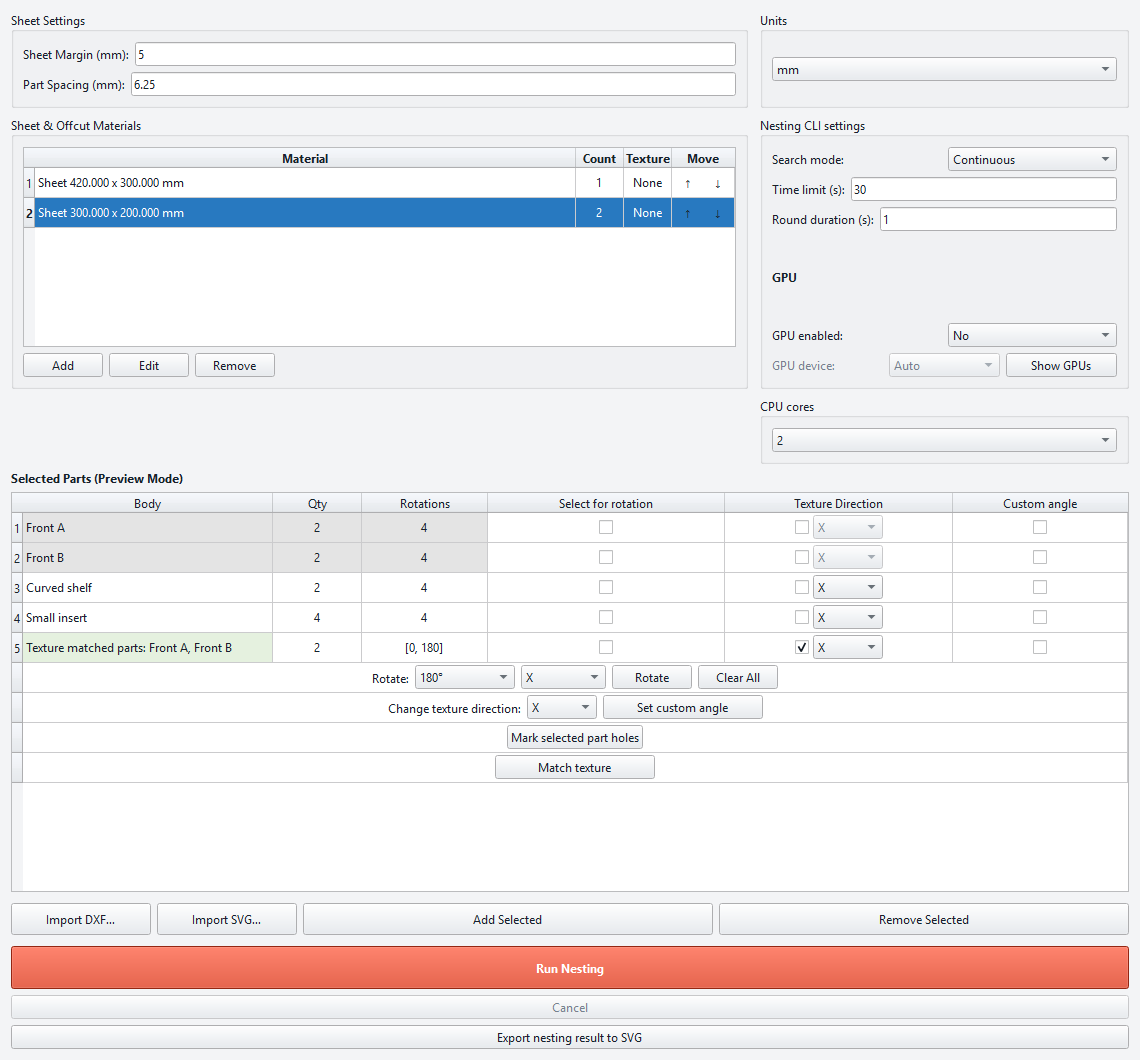
Click Add in the material section. Enter the sheet dimensions and the number of available sheets. Set the Sheet margin and Part spacing in the main window.
Select a material row and click Edit to revise it. Select and remove a row when that stock is no longer available for this job.
Dimensions can be displayed in millimetres or inches; jobs use millimetres internally.
Part spacing can include hundredths of a millimetre.
04 / Add rectangular sheets View image ⤢
05
Use irregular stock and offcuts
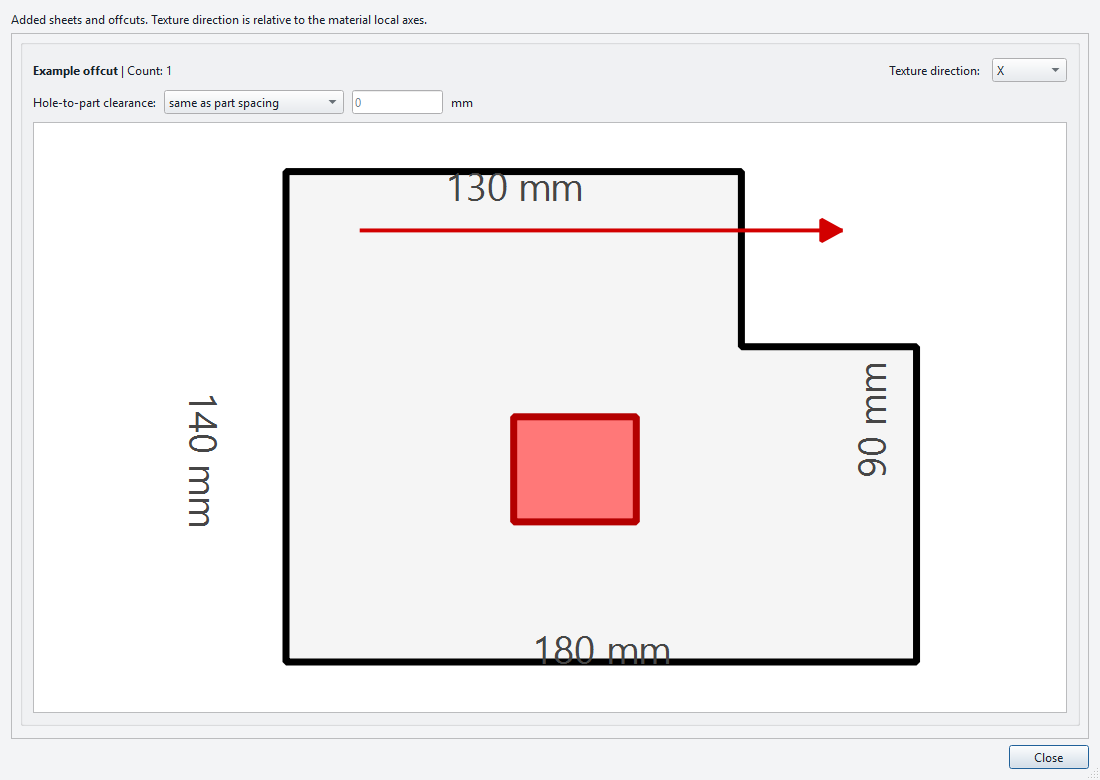
Add stock using a DXF outline when the available material is not rectangular. Inspect its contour, available quantity, grain direction and excluded inner regions.
Use the stock Edit action to review or change an imported outline before nesting.
Treat an offcut as stock, not as a part to place.
Inspect holes or excluded regions before running the job.
05 / Use irregular stock and offcuts View image ⤢
06
Prepare the part orientation
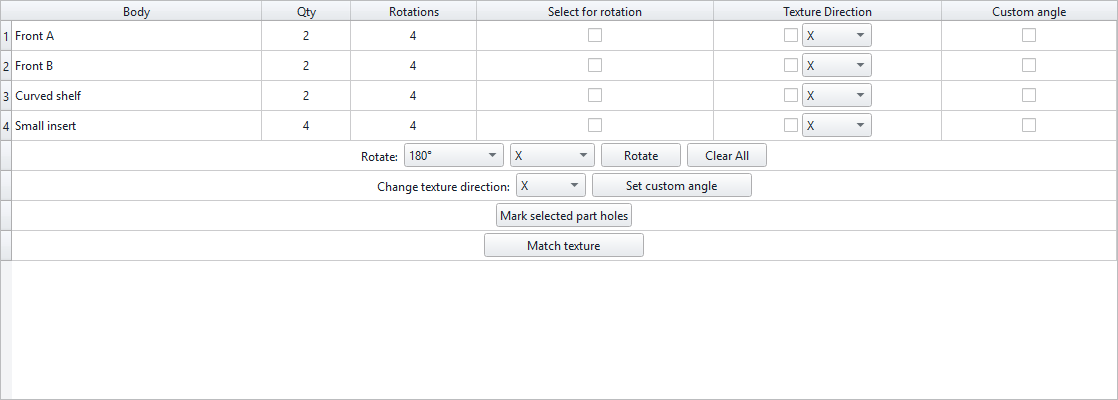
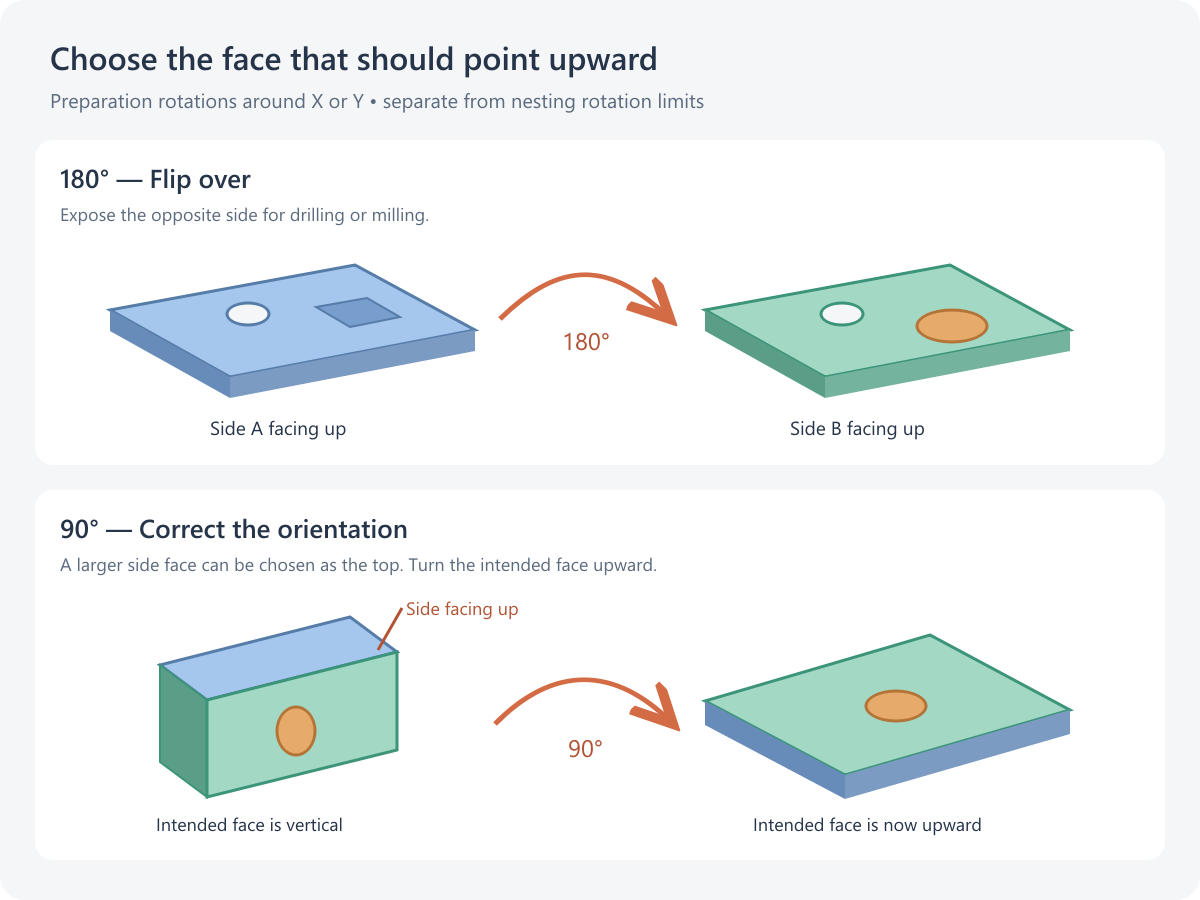
Select the parts with Select for rotation, choose X or Y as the horizontal rotation axis, choose the angle and press Rotate. These preparation rotations change which face points upward; they are separate from the allowed nesting angles in the Rotations column.
180° — Flip over: turn a 3D part over when you want to drill holes or mill pockets on its opposite side. Check that the intended machining face is now facing upward.
90° — Correct the upward-facing side: 1stNesting initially aligns the largest face upward. Some parts have a side face larger than their intended top face. Rotate such a part by 90° around the appropriate X or Y axis to place the intended face upward, then check the preview.
Use 180° to expose machining on the opposite side.
Use 90° to correct a part that was aligned on a larger side face.
Preparation rotations do not change the permitted in-plane nesting angles.
06 / Prepare the part orientation View image ⤢Illustration comparing a 180-degree flip over and a 90-degree change of the upward-facing part side
07
Choose allowed nesting rotations
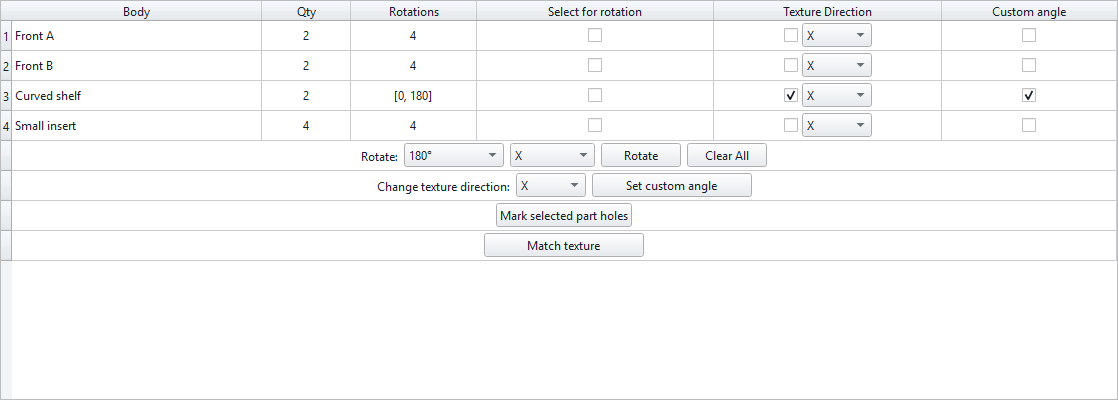
Edit the Rotations value for a part to control which in-plane orientations the nesting engine may use. Standard options include a single orientation, four quarter-turn orientations, 45° increments and a custom list such as [0, 180].
Restrict rotations when grain or another directional constraint matters.
Allowed rotations are engine constraints.
They do not replace the 3D preparation Rotate command.
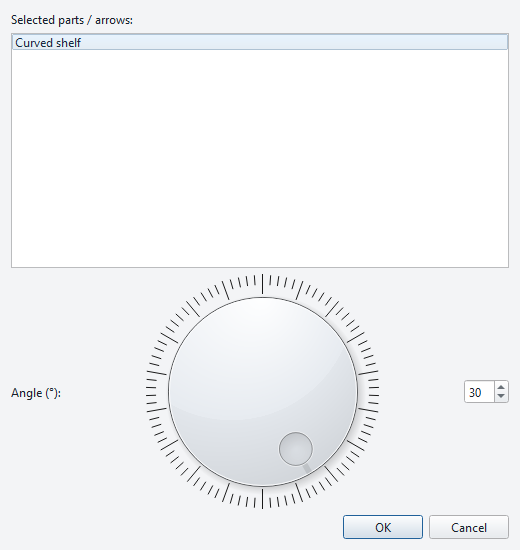
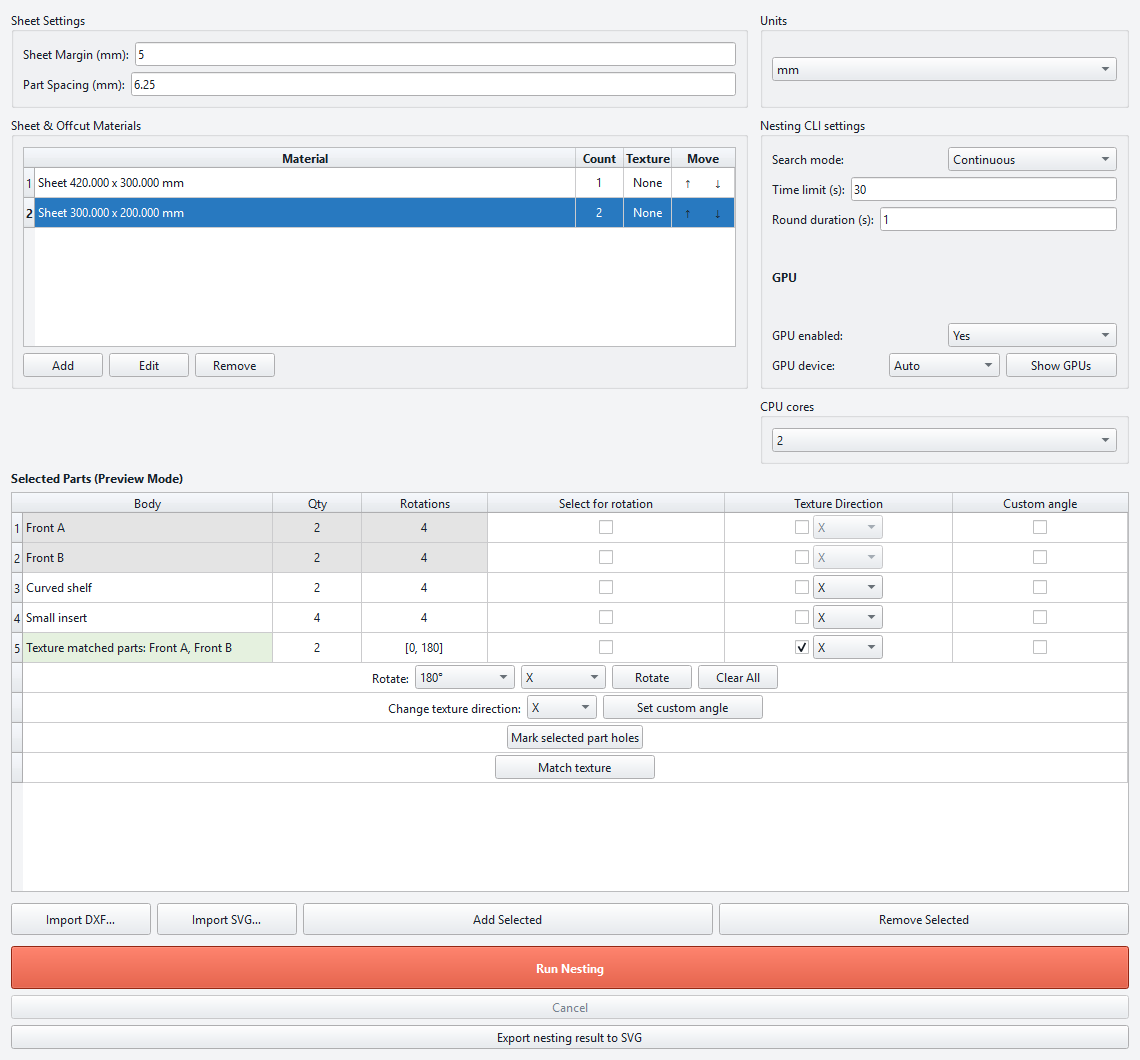
Enable Texture direction and choose the part’s local X or Y direction. The preview rotates the part and its direction arrow so that the arrow stays horizontal. Direction-constrained parts use [0, 180].
For another direction, also enable Custom angle and use Set custom angle. Inspect the preview arrow after making the selection.
Use grain constraints where material direction must be preserved.
Saved texture groups keep their relative arrangement.
08 / Set texture direction and a custom angle View image ⤢
09
Mark usable holes
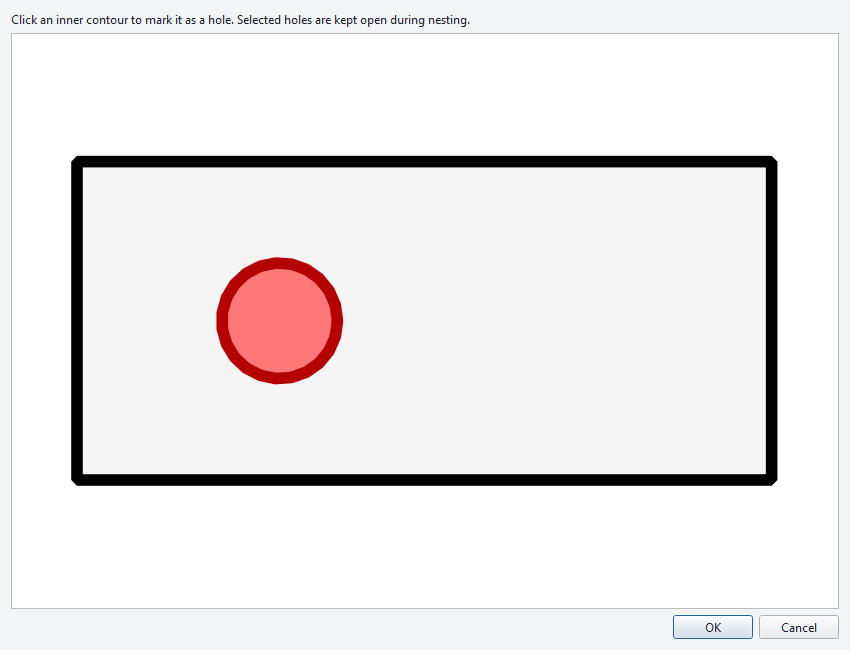
Select a part row and use Mark selected part holes. Choose the appropriate through holes that the nesting geometry should consider. Review the highlighted inner contours before continuing.
Use row selection for this command.
Check that the selected contours correspond to the intended through holes.
09 / Mark usable holes View image ⤢
10
Arrange a texture group
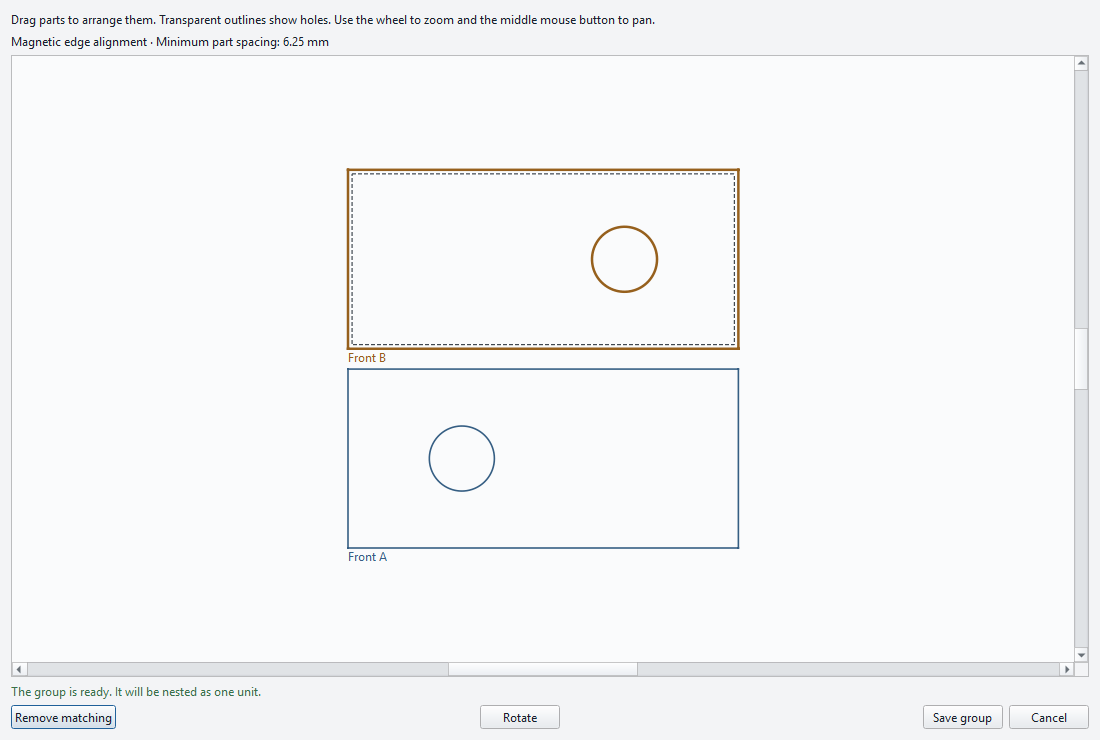
Select the related parts and open Match texture. Drag their transparent outlines into position; inner holes remain visible. The invisible grid aligns neighbouring parts, while collision checks preserve the configured minimum spacing.
Select a part and press Rotate to turn it 90° clockwise. Press Save group when the arrangement is ready.
The invisible grid is proportional to the smallest part and rounded to whole millimetres.
Parts cannot overlap or move inside the required spacing.
10 / Arrange a texture group View image ⤢
11
Review or remove matching
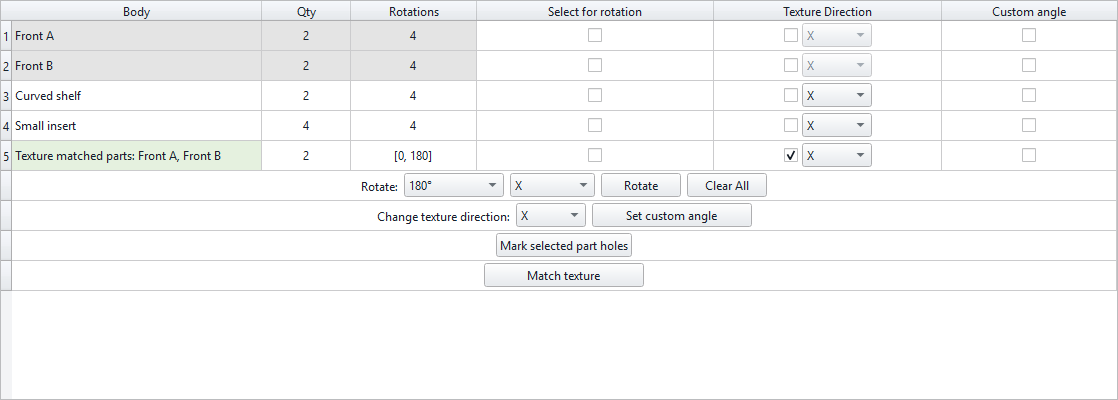
A saved Texture matched parts group appears as a numbered table row. It nests as one arranged perimeter, preserving the displayed positions of its members.
Open the matching editor and press Remove matching to release the selected group’s parts back into the table. Check texture direction and rotation constraints again if you change the arrangement.
Groups use the same nesting workflow as individual parts.
The result reconstructs the original member geometry.
11 / Review or remove matching View image ⤢
12
Choose First or Continuous search
Choose First (fast) to stop after an initial valid solution. Choose Continuous to keep searching for improvements; set a time limit when you want a bounded run.
A zero Continuous deadline means unlimited search. Cancel can stop a run while leaving an already published valid layout available.
Start with First (fast) to confirm your job setup.
Use Continuous when you want additional search time.
12 / Choose First or Continuous search View image ⤢
13
Select CPU or optional GPU processing
The main window exposes the processor controls used for the nesting job. CPU processing is available; OpenCL GPU processing is optional. Use Show GPUs to inspect detected devices before selecting one.
GPU availability depends on a compatible installed driver and OpenCL support.
A GPU is optional, not a requirement for normal nesting.
Inspect detected devices rather than assuming every GPU is supported.
13 / Select CPU or optional GPU processing View image ⤢
14
Run nesting and follow progress
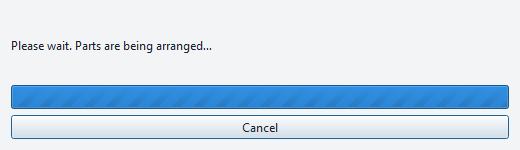
Click Run nesting when the part list, stock, spacing, margins and rotation rules are ready. Follow the progress display while the engine searches.
Use Cancel if you want to stop. When a valid result has already been published, it can remain available for inspection.
Review quantities and available stock before starting.
Correct geometry or constraints if no valid layout is found.
14 / Run nesting and follow progress View image ⤢
15
Inspect the FreeCAD result
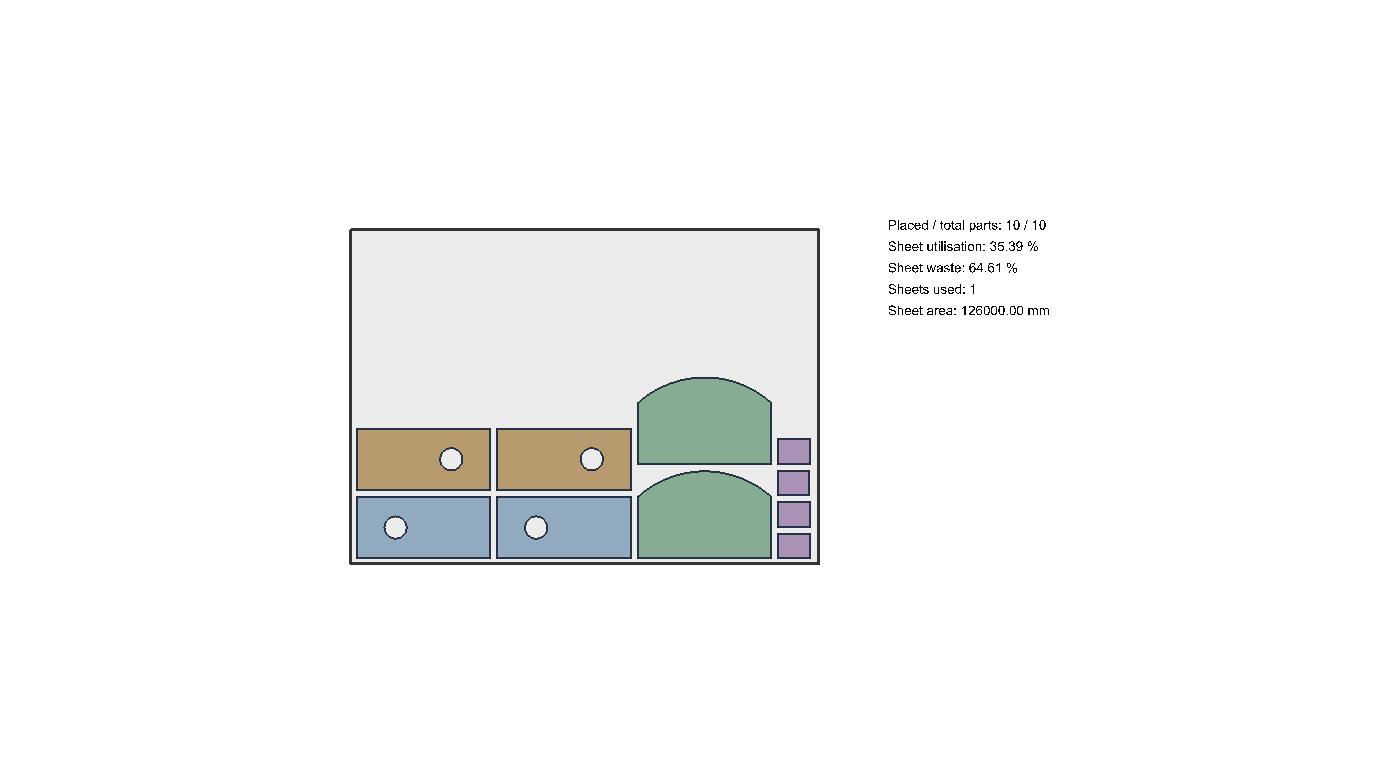
The Nesting_Result document opens the completed arrangement and fits the result into view. Review the used sheets, part positions, orientations and texture-group relationships.
The workbench reconstructs original geometry, so curved edges and machining details remain available for inspection.
Inspect the CAD result before manufacturing.
Compare directional parts against the intended material grain.
15 / Inspect the FreeCAD result View image ⤢
16
Connect parts with cutting bridges
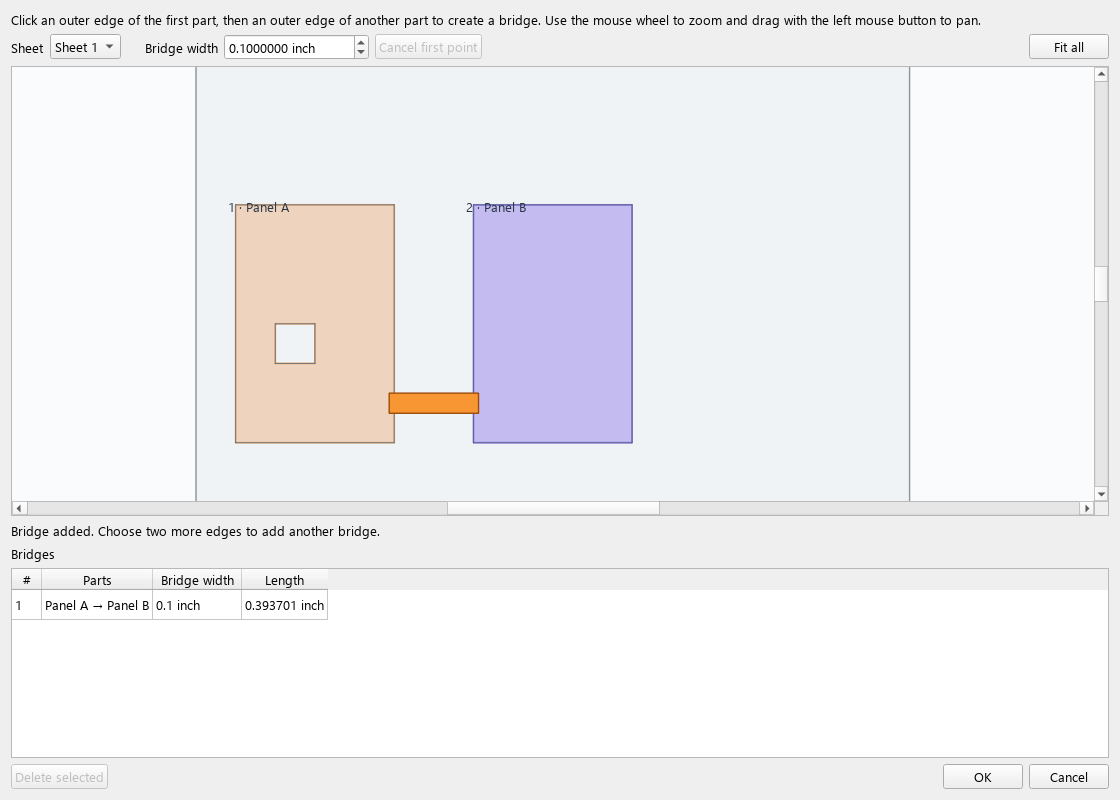
Bridges join neighbouring parts into one connected outline. In CAM, that outline can be cut as one continuous cut across several parts, reducing separate starts and unnecessary laser-head retracts or travel moves. Hole cuts and machine-specific cutting paths are still configured in CAM.
Run nesting, then click Create bridges beside Match texture. Choose the sheet and enter the bridge width in the selected mm or inch units. Click an outer edge of the first part, then an outer edge of the second part to add a bridge. The editor checks that the full bridge width does not cross another part or a hole.
Use the mouse wheel to zoom, drag with the left mouse button to pan and press Fit all to see the sheet. Select an incorrect bridge in the list and press Delete selected. Press OK to create Nesting_Bridges. Each connected group becomes one joined 3D solid or 2D cutting profile, ready to export to CAM.
Create bridges after obtaining a nesting result.
Bridge widths are converted internally to millimetres.
A connected outer perimeter can be cut continuously; internal holes require their own cuts.
16 / Connect parts with cutting bridges View image ⤢
17
Export a coloured SVG report
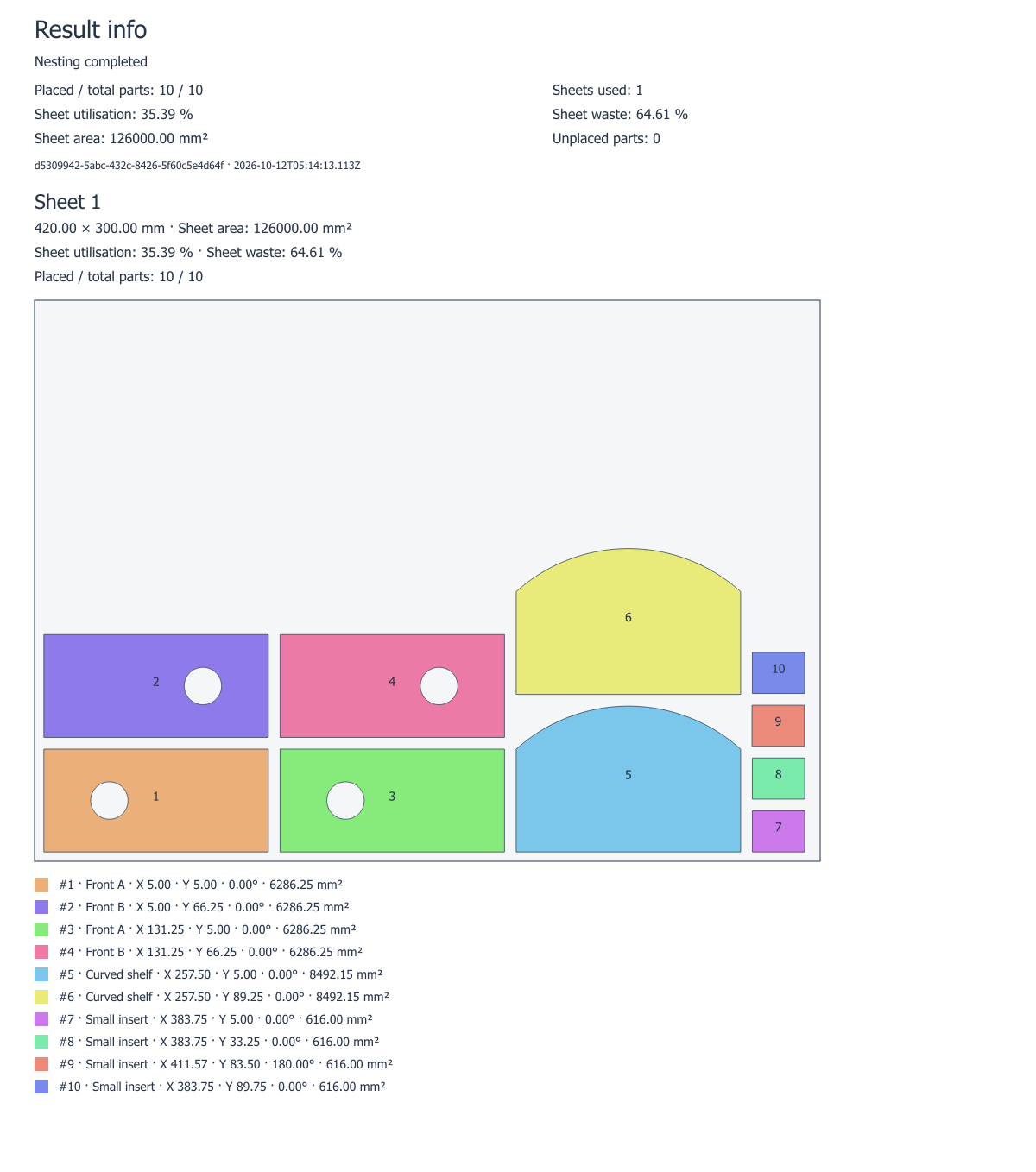
Press Export nesting result to SVG after obtaining a result. Choose the output file location. The report gives parts individual colours and includes legends, positions, angles, areas, placed/unplaced information and sheet utilisation.
The SVG is a layout report. Create and verify machine-specific toolpaths separately in your manufacturing workflow.
Keep the SVG with your job records.
Use Export to DXF for CAD/CAM contours.
Generate and verify machine-specific toolpaths in CAM.
17 / Export a coloured SVG report View image ⤢
18
Export the nesting result to DXF
Press Export to DXF beside the SVG export button and choose a filename. The exporter uses the actual placed CAD geometry, preserving lines, circles, arcs and splines rather than rebuilding them from sampled nesting polygons. FreeCAD parts and imported STEP, DXF and SVG geometry use the same export workflow.
Keep Nesting_Result active to export the nesting arrangement. To export connected parts, keep Nesting_Bridges active. Each part or joined bridge group has its own sheet/part layer, and multiple sheets retain their displayed positions. The file uses millimetres even when the interface displays inches.
The DXF is a 2D top-view drawing with visible holes and machining details. Open it in your CAD/CAM program and select the intended cutting or milling contours. Stock borders, labels and unplaced parts are not exported.
Export SVG for a coloured layout report; export DXF for CAD/CAM contours.
Check DXF units as millimetres in the receiving application.
Inspect the selected contours before generating machine-specific toolpaths.